Downloading Lecture Videos from Coursemos LMS - m3u8, ffmpeg, yt-dlp

Let's download HLS-streamed lecture videos from Coursemos LMS using the m3u8 URL.
TL;DR
Coursemos lecture videos can't be saved with a right-click, and even in the developer tools you only see .m3u8 and .ts files instead of an mp4.
Cause: The video is split into small pieces and delivered via HLS streaming.
Solution: The easiest way is the FetchV browser extension. If you're comfortable with the command line, you can also copy the .m3u8 URL from the developer tools and download it with ffmpeg or yt-dlp.
Introduction
I wanted to transcribe lecture videos with STT and use the text as review material. But right-clicking the video showed no save option, and when I opened the developer tools to look for an mp4 file, all I found were .m3u8 and .ts files.
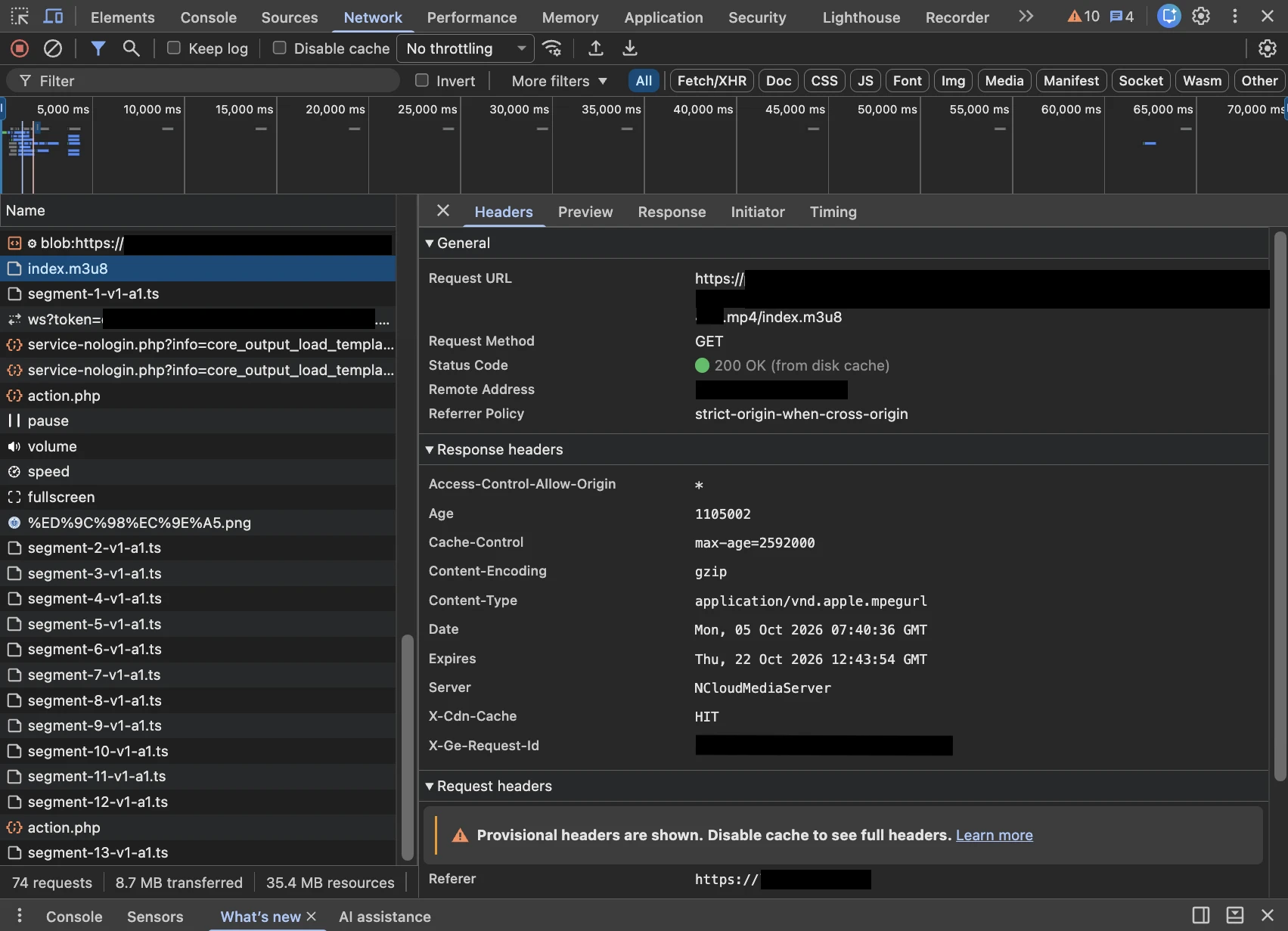
One index.m3u8 and a long series of chunk files like segment-1-v1-a1.ts, segment-2-v1-a1.ts... were being downloaded one after another.
Coursemos, my university's LMS, is built on Moodle, an open-source LMS. Moodle serves uploaded videos as plain files, but my university's Coursemos was delivering lecture videos via HLS from a separate streaming server.
Coursemos probably has a setting that lets instructors turn video downloads on or off, and it seems to be off by default. That would explain why students see no download button and can only watch videos as a stream.
1. What is HLS streaming?
HLS stands for HTTP Live Streaming, a streaming protocol created by Apple.1 It splits a single video into chunks a few seconds long and plays the chunks at whatever quality suits the current network conditions.
.m3u8: The playlist file. It lists which chunks to play and in what order..ts: The chunk files that contain the actual video.
If you open an .m3u8 file, it looks like this:
#EXTM3U
#EXT-X-TARGETDURATION:10
#EXTINF:10.0,
segment0.ts
#EXTINF:10.0,
segment1.ts
...
#EXT-X-ENDLIST
In other words, as long as you know the .m3u8 URL, you can download every .ts chunk in the list and merge them into a single video. All of the methods below work on this principle.
The copyright of lecture videos belongs to the instructor and the university. Check the terms of use before downloading, and use downloaded videos for personal study only. Unauthorized distribution or sharing may cause legal problems.
2. Method 1: Browser Extension (FetchV)
It only takes a few clicks with no commands, so for most people this method is enough. FetchV detects the m3u8 video playing on the page and saves it as a merged mp4.
Step 1: Install
Open the FetchV page in the Chrome Web Store and click Add to Chrome.


After installing, pin FetchV from the puzzle icon for easy access. It can also be installed on Chromium-based browsers (Edge, Whale, Brave, Vivaldi, etc.).
Step 2: Download
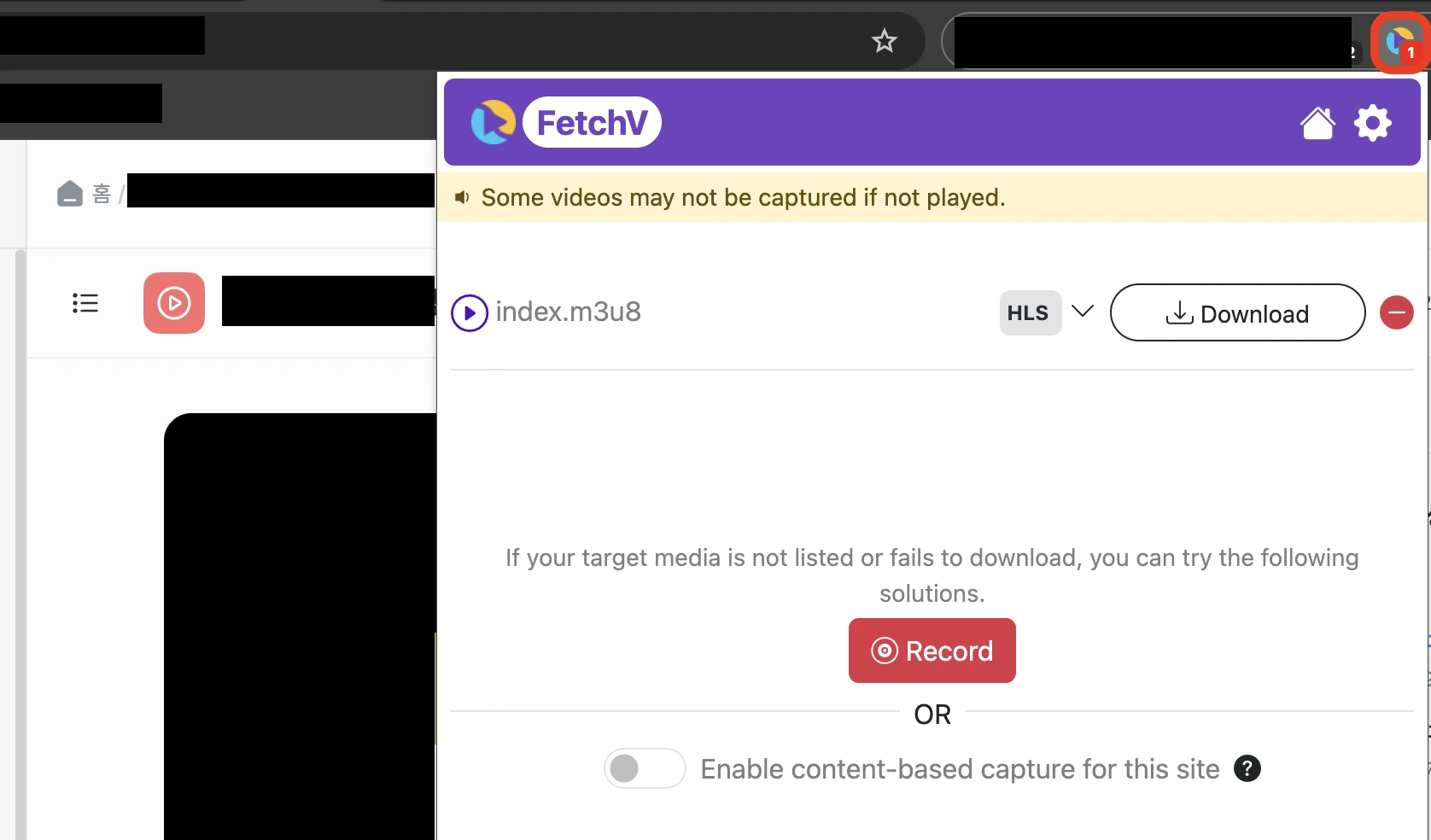
Play the lecture video in Coursemos, then click the FetchV icon in the extension toolbar to see the detected index.m3u8. It won't be detected unless the video is playing, so make sure to play it first. Click Download.
A download page opens in a new tab and starts fetching the chunks. You can also change the quality and file name here. When it reaches 100%, click the green save button to save the file.
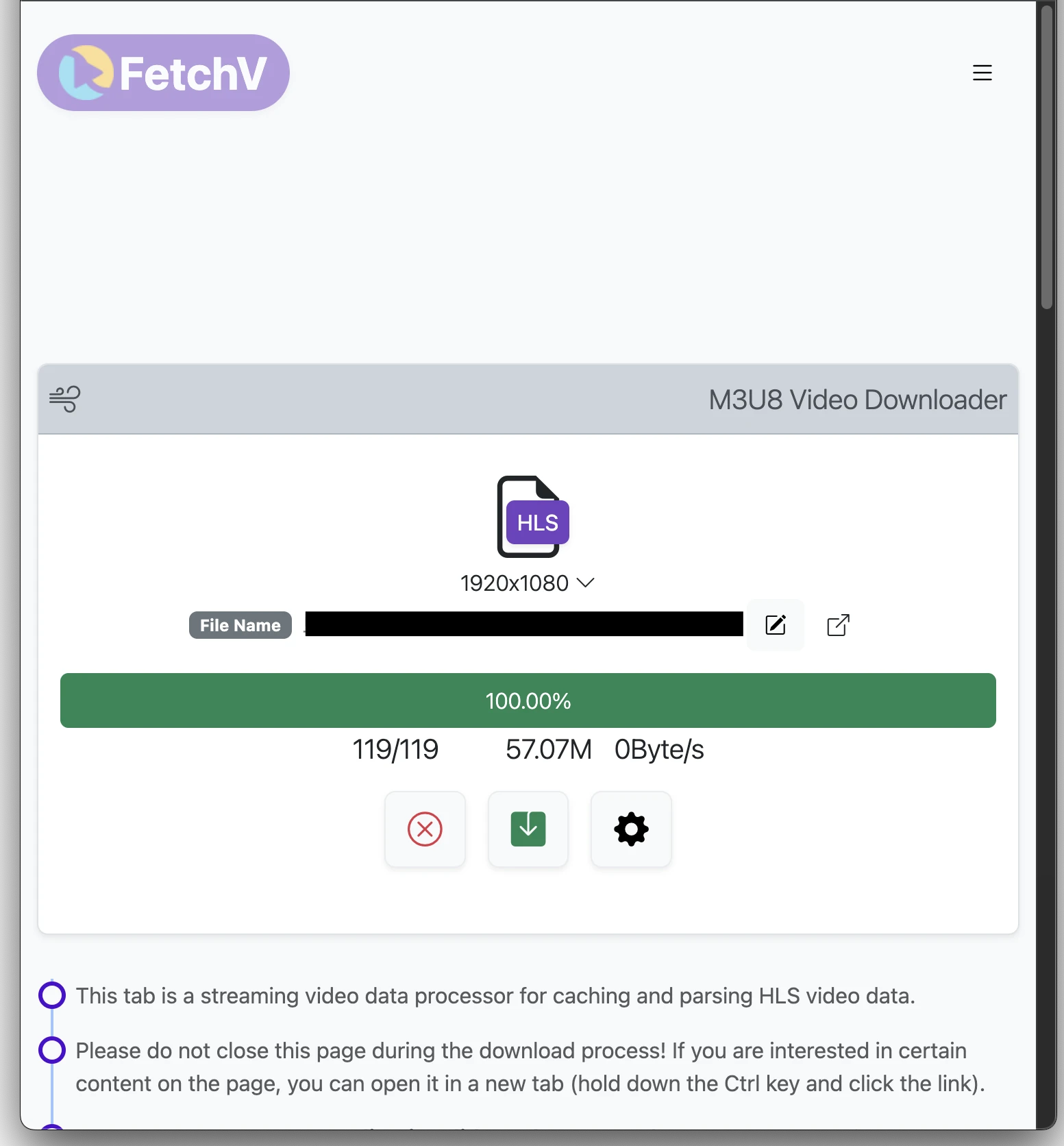
Don't close this tab until the download is finished. This tab holds the downloaded chunks and merges them into one file. Also, even at 100%, the file isn't saved until you click the save button.
Another option: Coursemos Downloader
While searching, I found another extension that, judging by its name, is made for Coursemos. It reportedly detects videos playing on university and corporate online lecture platforms and saves them as MP4 or M4A.

However, I haven't tried this extension myself.
3. Method 2: Download with Commands
If you'd rather not install an extension, or you're comfortable with the command line, you can download with commands. First, you need to find the .m3u8 URL.
Step 1: Find the m3u8 URL
- Open the lecture video page in Coursemos.
- Open the developer tools with
F12(Command+Option+Ion Mac) and go to the Network tab. - Type
m3u8in the filter box. - Play the video and an
.m3u8request will appear. Right-click → Copy → Copy URL to copy the address.
If you click the request, you can also see the address in Request URL on the Headers tab, as in the screenshot in the introduction.
- If nothing shows up, keep the developer tools open, refresh (
F5), and play the video again. - If you see several
.m3u8files, there's a playlist for each quality. Any of them will work, and if you use the quality list (master), the tool will pick the best quality automatically. - The token attached to the end of the URL expires after a while. Download right after copying it.
Step 2-A: Download with ffmpeg
ffmpeg is a command-line tool for converting video and audio. Give it an m3u8 URL and it downloads the chunks and merges them into a single file.
Install
# Mac (Homebrew)
brew install ffmpeg

# Windows (PowerShell)
winget install Gyan.FFmpeg
On Windows, you need to open a new terminal after installing for the command to be recognized. Check that it's installed:
ffmpeg -version
Download
ffmpeg -i "m3u8_URL" -c copy lecture.mp4
-i "m3u8_URL": The m3u8 URL to use as input. It contains characters like&, so wrap it in quotes.-c copy: Joins the chunks as they are without re-encoding. No quality loss, and it's fast.lecture.mp4: The file name to save as.
Step 2-B: Download with yt-dlp
yt-dlp is a command-line tool for downloading videos from YouTube and many other sites. youtube-dl used to be the popular choice, but its updates have effectively stopped, so today we use yt-dlp, its successor.2 Usage is the same as youtube-dl, and if you give it an m3u8 URL it lets you pick the quality.
Install
# Mac (Homebrew)
brew install yt-dlp

# Windows (PowerShell)
winget install yt-dlp.yt-dlp
yt-dlp uses ffmpeg to merge the downloaded chunks into an mp4, so ffmpeg must also be installed.
yt-dlp --version
Download
yt-dlp "m3u8_URL" -o lecture.mp4
"m3u8_URL": The m3u8 URL to download.-o lecture.mp4: The file name to save as. If omitted, it's saved under the m3u8 file name.
To see which qualities are available before downloading, add -F.
yt-dlp -F "m3u8_URL"
Pass the ID at the start of each row to -f to download that quality, for example yt-dlp -f 720 "m3u8_URL".
You can see what it actually looks like in 4. (Optional) Test It First.
If you get a 403 error
If the video plays in the browser but the command returns 403 Forbidden, the server is checking where the request came from. Click the m3u8 request in the developer tools, copy the Referer value from Request Headers, and pass it along.
# ffmpeg: -headers must come before -i
ffmpeg -headers "Referer: copied_Referer" -i "m3u8_URL" -c copy lecture.mp4

# yt-dlp
yt-dlp --referer "copied_Referer" "m3u8_URL" -o lecture.mp4
4. (Optional) Test It First
Before downloading an actual lecture, you can check that the commands work using a public test m3u8. It's the Big Buck Bunny (about 10 minutes) stream provided by Mux.
Show test steps
Step 1: Test with ffmpeg
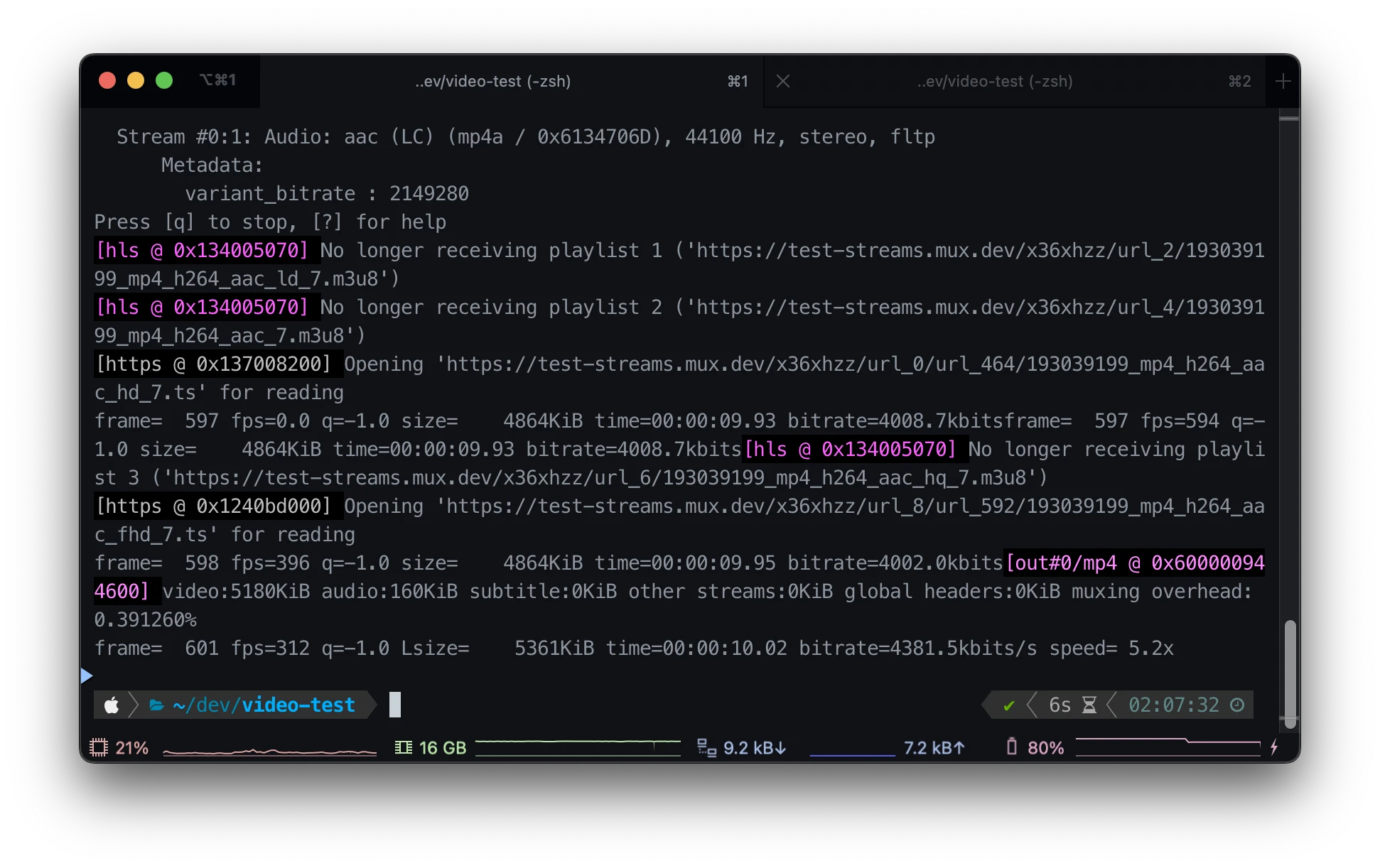
Since this is just a test, we'll download only the first 10 seconds. Adding -hide_banner removes the long version info at the top so that only the download process is shown.
# -t 10 → first 10 seconds only
ffmpeg -hide_banner -i "https://test-streams.mux.dev/x36xhzz/x36xhzz.m3u8" -t 10 -c copy ffmpeg-test.mp4
You can see it open the .ts chunks one by one (Opening '...ts' for reading) while the time in the frame= ... time= line at the bottom climbs to 00:00:10.
Step 2: Test with yt-dlp
First, check the quality list. Five options from 240p to 1080p are shown.
yt-dlp -F "https://test-streams.mux.dev/x36xhzz/x36xhzz.m3u8"
Let's download the whole video at the smallest quality, 240p (about 20MB).
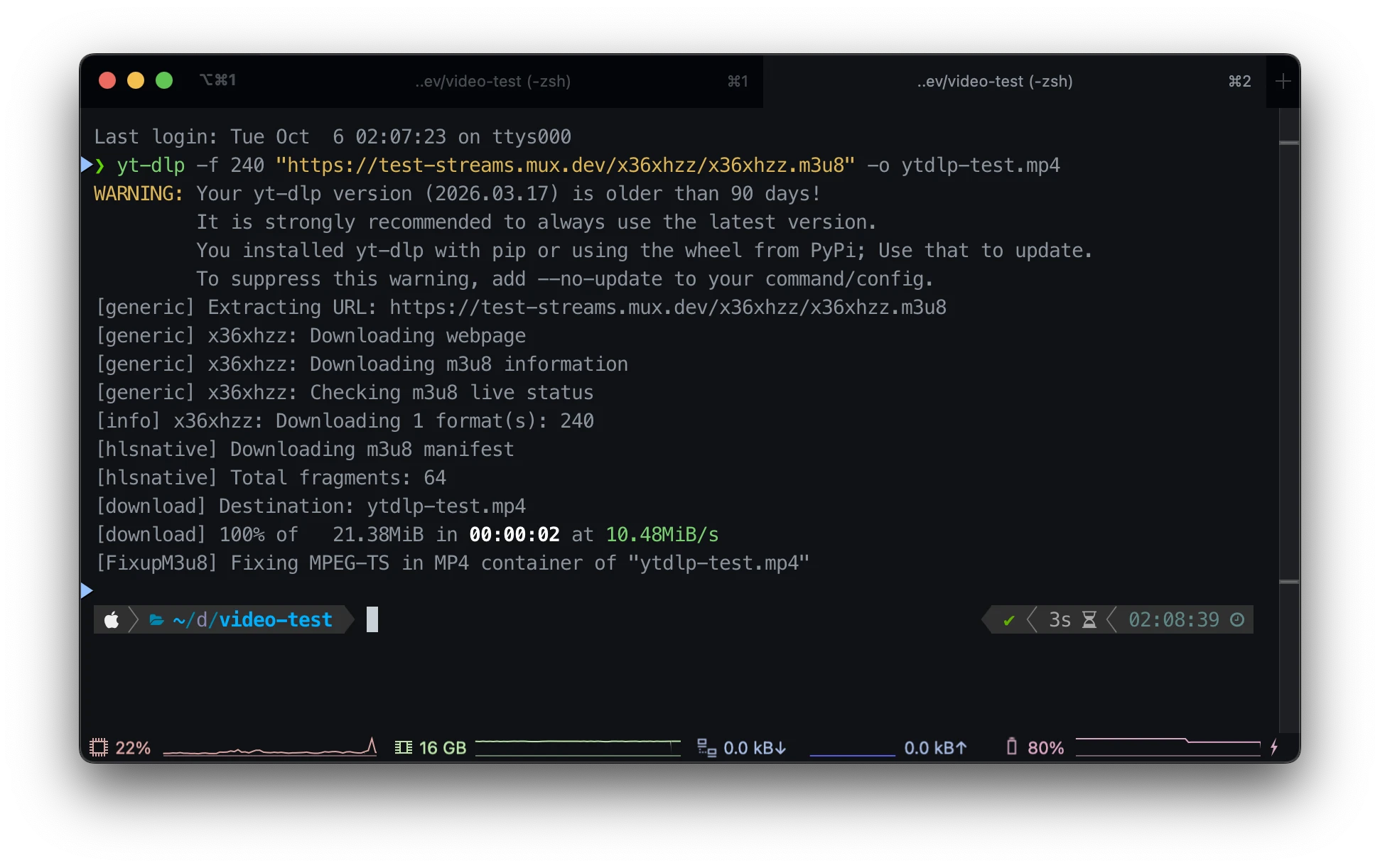
yt-dlp -f 240 "https://test-streams.mux.dev/x36xhzz/x36xhzz.m3u8" -o ytdlp-test.mp4
Total fragments: 64 tells you the m3u8 lists 64 chunks, and while downloading it shows which chunk it's on, like (frag 30/64). When finished, 100% of 21.38MiB appears, and in the [FixupM3u8] step it uses ffmpeg to tidy up the mp4 file.
Step 3: Check the results
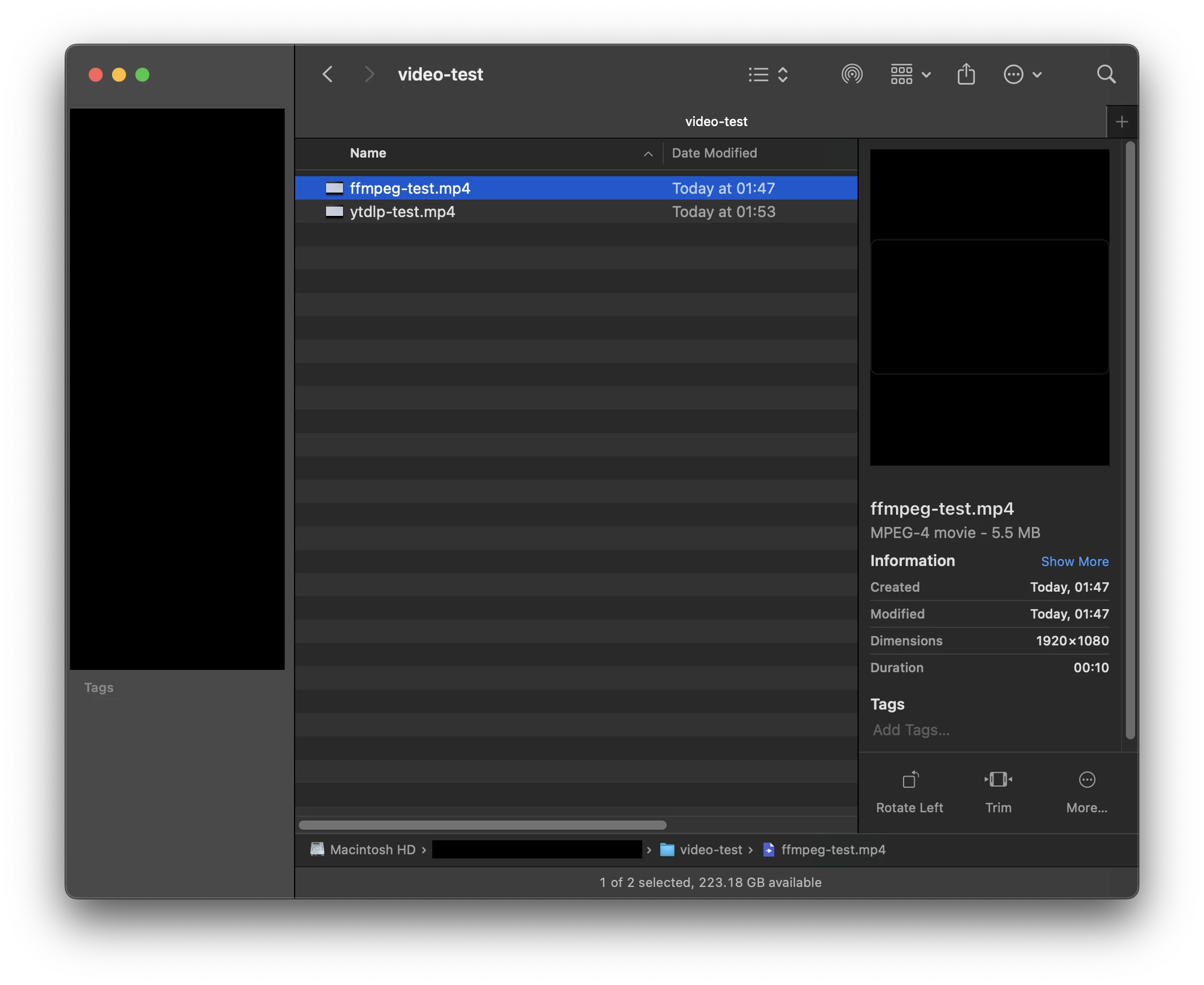
Two mp4 files were created in the folder. The file downloaded with ffmpeg is 1920×1080, 10 seconds (about 5.5MB), and the one downloaded with yt-dlp is 240p, 10 minutes (about 20MB).
5. Using the Downloaded Video
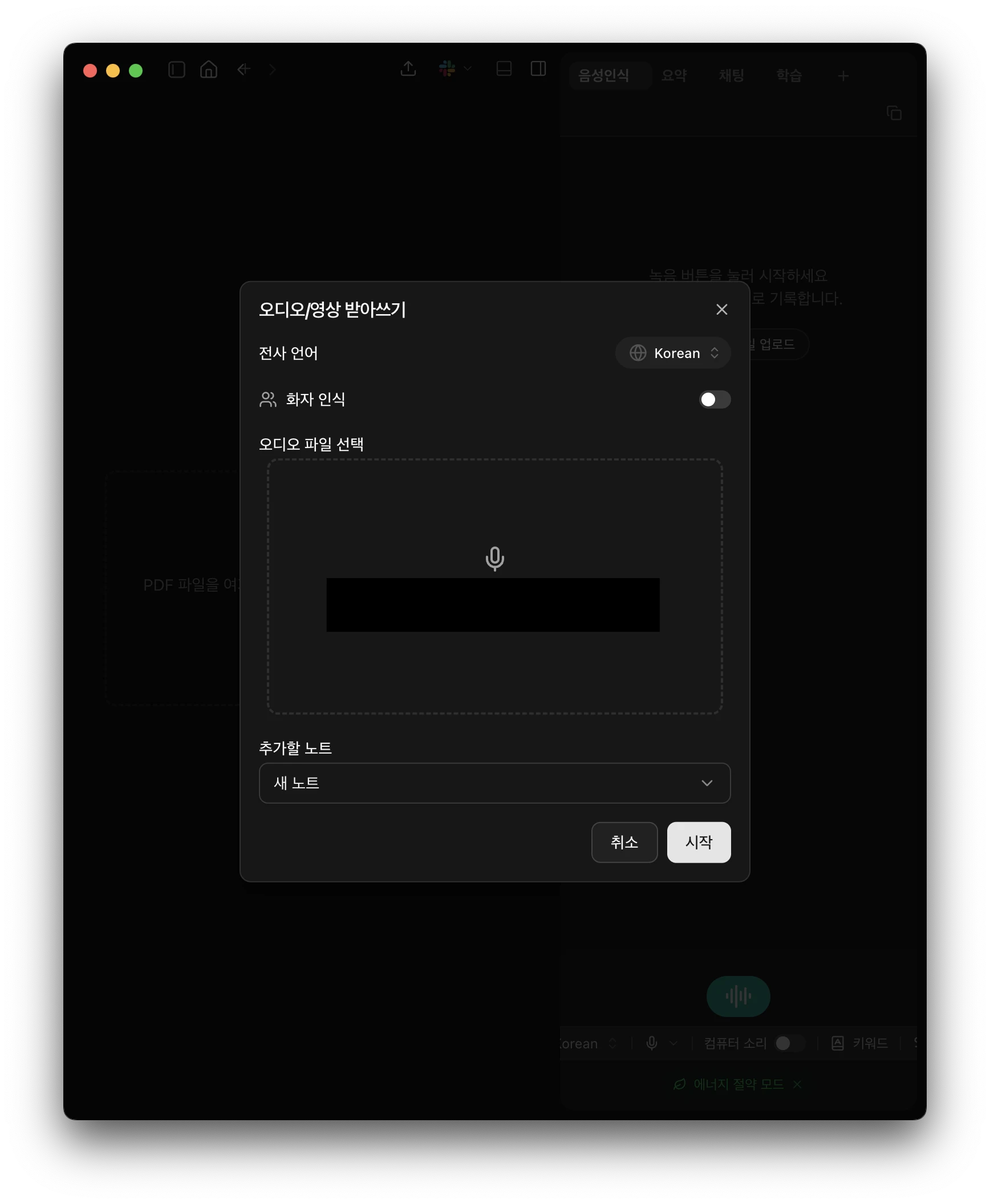
I put the downloaded lecture videos into an STT service like Alt, transcribed them into text, and used the text as review material.
Conclusion
If you can't find an mp4 for a Coursemos lecture video, it's because the video is streamed via HLS. All you need is the .m3u8 URL.
- Easiest: Download the playing video directly with the FetchV extension
- With commands: Copy the
.m3u8URL from the developer tools → download withffmpegoryt-dlp
I sometimes rewatch lectures to review, and I prefer to transcribe my professors' lectures so I can read them later. It was a shame that I could only stream them until now, so I'm glad I seem to have found a good way to download the videos and transcribe them.