Reading Figma Comments in Claude - Installing figma-comments-mcp

Let's read Figma comments in Claude with figma-comments-mcp, which the official Figma MCP can't do.

TL;DR
The official Figma MCP can read designs, but it can't read comments.
Solution: Build figma-comments-mcp → Generate a read-only Figma token → Register it in claude_desktop_config.json → Restart Claude
Introduction
In a team project, I had to organize the feedback comments that designers and teammates had left all over our Figma screens. With dozens of comments piling up, opening and copying them one by one was tedious, so I decided to hand the job over to Claude.
However, the official Figma MCP connected to Claude read design information like frames and components just fine, but it couldn't fetch comments. That's because comments are only accessible through the REST API, not the Plugin API.1
That's how I found figma-comments-mcp.

1. What is figma-comments-mcp?
It's an MCP server that lets Claude read comments and Dev Mode annotations in Figma files.2 It provides two tools:
list_figma_comments: Fetches comment threads and annotations from a file or a specific frame. It tells you where each comment is pinned by layer name.get_figma_comment_image: Renders the layer a comment is pinned to as an image.
I liked that it's read-only, so there's no chance of Claude accidentally posting or deleting comments.
Another Option: figma-console-mcp-skills
While searching, I found another project that looked similar.
This isn't an MCP server but a collection of 22 skills. It includes a comments skill that can not only read but also post, reply to, and delete comments. However, most of the other skills modify variables or components, and the comments skill only works in terminal-capable environments (such as Claude Code).1
| figma-comments-mcp | figma-console-mcp-skills | |
|---|---|---|
| Type | MCP server | Skill collection |
| Read comments | ○ | ○ |
| Post/delete comments | × | ○ |
| Layer images · Dev Mode annotations | ○ | - |
| Installation | Register in config file | npx skills add |
Since I only needed to read and organize comments, I chose figma-comments-mcp.
2. Installation
Node.js and git must be installed.
Step 1: Clone and Build
Clone the repository to any location and build it.2 I cloned it under ~/dev.
git clone https://github.com/ejun-9/figma-comments-mcp.git
cd figma-comments-mcp
npm install
npm run build
Once the build finishes, a dist/index.js file is created. You'll need to put this file's absolute path into the config file later, so make a note of it.
pwd
# /absolute/path/to/figma-comments-mcp
Step 2: Generate a Figma Token
In Figma, go to the account menu → Settings → Security → Personal access tokens → Generate new token.3
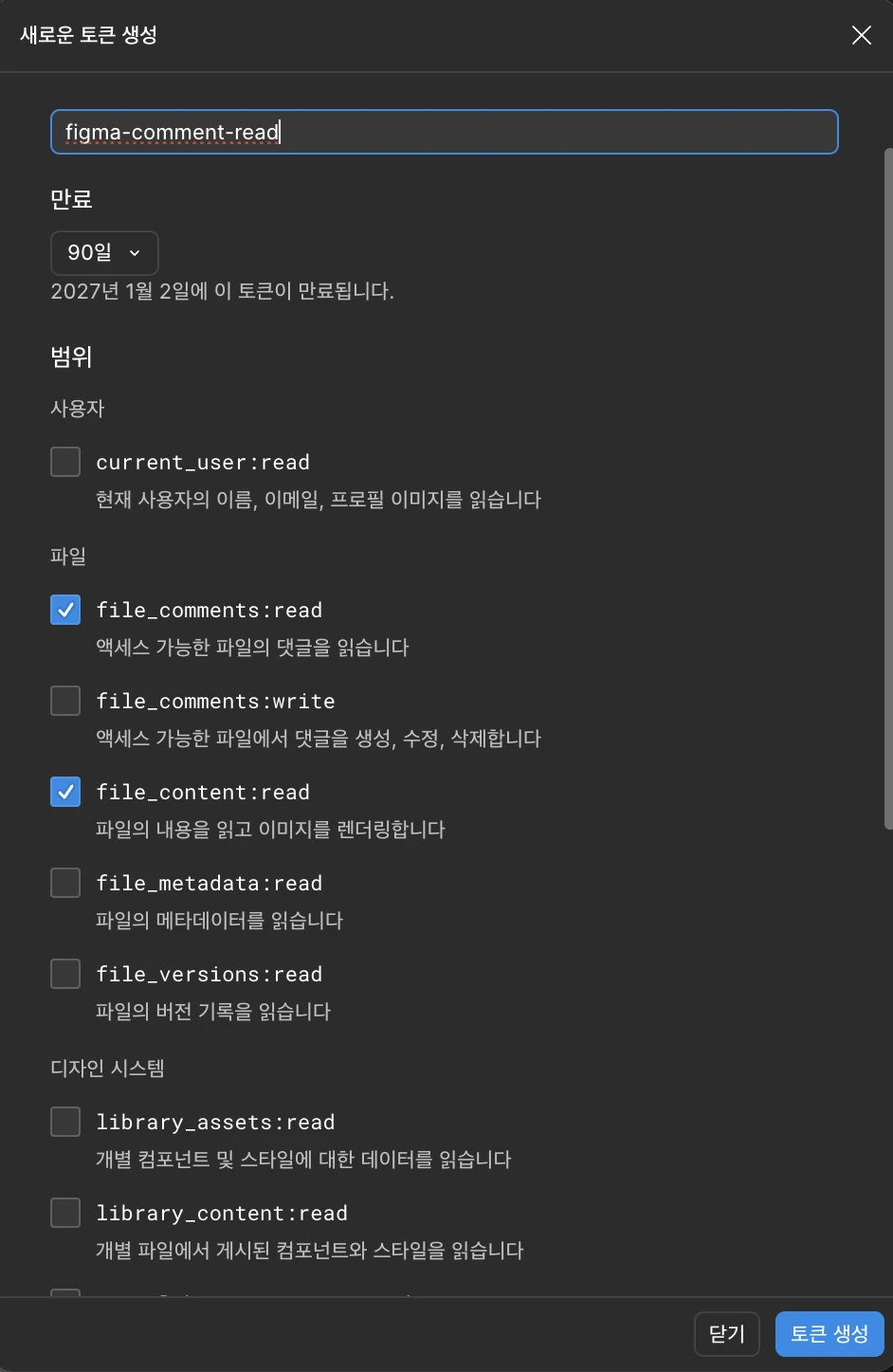
(The screenshot is from the Korean UI.)
I named the token figma-comment-read so it's easy to recognize, and checked only two scopes:
file_comments:read: Read comments in filesfile_content:read: Read file contents and render images
Leave file_comments:write unchecked. You don't need that permission if you're only reading.
I set the expiration to 90 days. When it expires, just generate a new one and replace the token in the config file.
The token is shown only once, right after it's created. Copy it immediately.
Step 3: Test the Token (Optional)
Before adding it to the config file, you can check in the terminal that the token and build work correctly.
FIGMA_TOKEN=figd_your_token_here npm run try -- "https://www.figma.com/design/FILE_KEY/..."
If a list of comments is printed, it worked.
Step 4: Register in the Claude Desktop Config File
Open Claude Desktop's config file.
- Mac:
~/Library/Application Support/Claude/claude_desktop_config.json - Windows:
%APPDATA%\Claude\claude_desktop_config.json
You can also open the same file from the Claude menu in the menu bar → Settings... → Developer → Edit Config.4
Add the following inside mcpServers.
{
  "mcpServers": {
    "figma-comments": {
      "command": "node",
      "args": ["/absolute/path/to/figma-comments-mcp/dist/index.js"],
      "env": { "FIGMA_TOKEN": "figd_your_token_here" }
    }
  }
}
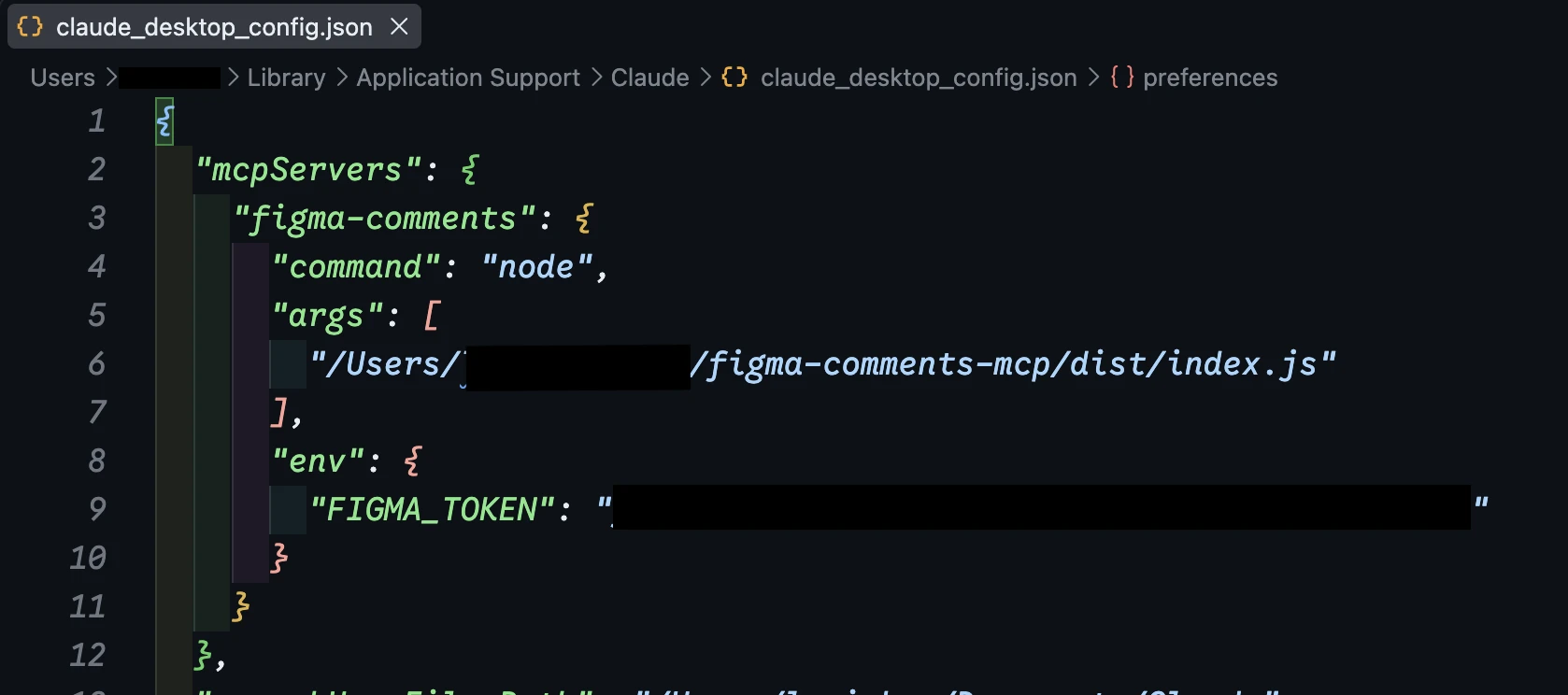
- In
args, put the absolute path ofdist/index.jsyou noted in Step 1.~is not recognized.5 - If other MCP servers are already registered, add only the
"figma-comments": {...}part insidemcpServers, and don't forget the comma.
If you use Claude Code, you can register it with a single command instead of editing the config file.
claude mcp add figma-comments --env FIGMA_TOKEN=figd_your_token_here -- node /absolute/path/to/figma-comments-mcp/dist/index.js
Step 5: Restart Claude
Save the config file, fully quit Claude Desktop (Command + Q), and launch it again. Just closing the window won't apply the changes.
3. Trying It Out
Just give Claude a Figma file link and ask it to organize the comments.
Summarize the comments in this file by screen
https://www.figma.com/design/FILE_KEY/...
If you give it a frame link (a URL containing node-id), it fetches only that frame's comments.
Conclusion
If the official Figma MCP can't read your comments, try adding figma-comments-mcp. Build it, generate a read-only token, and put the path and token in the config file — that's it.
I used to open each comment and copy it down by hand, but now I just give Claude a link and it organizes everything by screen. And since it's read-only, I don't have to worry about accidentally touching any comments, so it's been really useful lately.